Exercise · 5 steps · ~15 minutes + setup
Find the parts of your Linux system
Start the Ubuntu lab from the video as a virtual machine (VM) and as a container, and find each one’s kernel, distribution and first process.
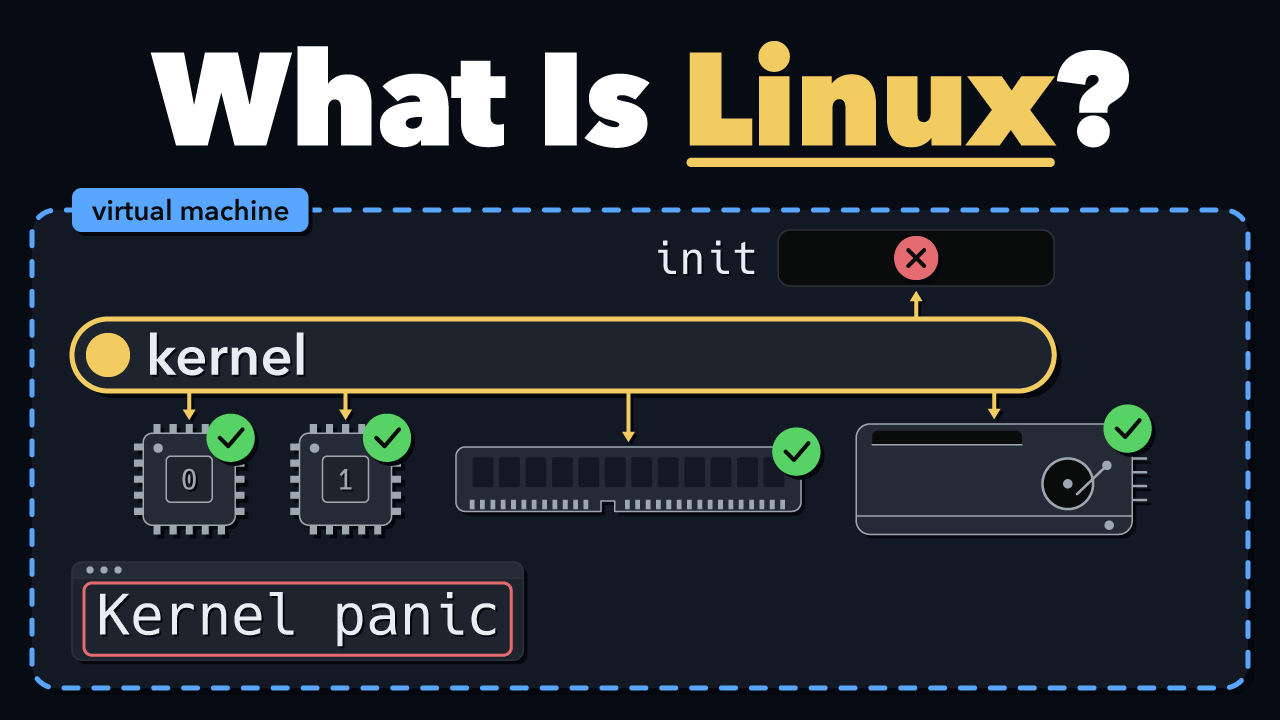
The exercise for my video Linux Explained: What a Linux System Is Made Of
You need a Mac, a Windows 11 PC or an Ubuntu 26.04 computer with virtualization turned on, 8 GB of memory, about 10 GB of free disk space and two tools, set up below. In the video, I build a Linux system part by part. Here, you look at the parts of two finished ones.
The three checks in the video
uname -r prints its release
/etc/, the line PRETTY_NAME
/proc/1/, the name of process 1
Before you start
Install Multipass, Canonical’s tool that makes Ubuntu virtual machines, with its installer for macOS. Then install Docker Desktop.
Docker Desktop is free for personal use, education and small businesses. Larger companies and government agencies need a paid subscription.
On Windows, the lab runs in WSL 2 instead of Multipass. Press Win, type PowerShell and click Run as administrator. If you don’t have WSL yet, install it and restart your PC:
If you have it already, run wsl --update. Then install Docker Desktop.
Docker Desktop is free for personal use, education and small businesses. Larger companies and government agencies need a paid subscription.
Install Multipass, Canonical’s tool that makes Ubuntu virtual machines:
Install Docker Engine with Docker’s own steps: remove the old packages it lists, and install from its apt repository. Then add yourself to the docker group, so you can run docker without sudo:
Log out and back in for it to work. Docker warns: “The docker group grants root-level privileges to the user.”
1. Start linux-lab
Open Terminal (press Cmd+Space, type Terminal and press Return) and run:
The first launch downloads Ubuntu 26.04, so it takes a few minutes. Then your prompt changes to ubuntu@linux-lab:~$. If multipass shell can’t connect at first, wait a few seconds and run it again.
Open PowerShell (press Win, type PowerShell and press Enter) and run:
It downloads Ubuntu 26.04 and starts it as linux-lab, separate from any Ubuntu you already have. Pick a username and a password for the lab. Nothing shows while you type the password. That’s normal. Next time, wsl -d linux-lab opens it.
Open a terminal (Ctrl+Alt+T) and run:
The first launch downloads Ubuntu 26.04, so it takes a few minutes. Then your prompt changes to ubuntu@linux-lab:~$. If multipass shell can’t connect at first, wait a few seconds and run it again.
2. Run the three checks
In linux-lab, run:
In the second answer, PRETTY_NAME is the distribution. Write down the three answers, then type exit to go back to your computer.
3. Start the container
On a Mac or Windows, start Docker Desktop first. Then run:
Your prompt changes to something like root@43cab0add2a1:/#. You’re in the container. Run the same three checks, then type exit.
4. Check your own computer
Run the same three checks on your Mac:
The first gives the release of Apple’s own kernel, 27.0.0 on my Mac, and the other two find no such file. A Mac isn’t Linux.
Windows has no uname, so ask PowerShell for the Windows version:
Your PC runs Windows’ own kernel, not Linux.
5. Delete linux-lab and start again
--purge deletes the VM for good. The new one takes about 40 seconds on my Mac, since Ubuntu is already downloaded.
--unregister deletes linux-lab and everything in it, for good. Type the name exactly, and never unregister your own distributions or docker-desktop. Then pick a username and a password again.
The container needs nothing: --rm deleted it when you typed exit.
What you found
| The VM | The container | |
|---|---|---|
| Kernel | 7.0.0-38-generic |
7.0.14-linuxkit |
| Distribution | Ubuntu 26.04.1 LTS | Ubuntu 26.04.1 LTS |
| First process | systemd |
bash |
The distribution reads Ubuntu every time, but the kernel isn’t always Ubuntu’s. The VM booted Ubuntu’s own kernel, ending in -generic, and started systemd. The container brought no kernel: it started Bash on Docker Desktop’s kernel, which ends in -linuxkit and was already running. So it says Ubuntu, but reports someone else’s kernel.
These are from my Mac, so your versions may be different. On Windows, linux-lab and the container both run on Microsoft’s kernel, since Docker Desktop runs in WSL 2 too. On Ubuntu, the container runs on your computer’s own kernel.
Next in the roadmap: Linux commands. That lesson opens the shell in this lab, so keep linux-lab. On a Mac or Ubuntu, multipass stop linux-lab stops it until then.
Steps 1 to 5 checked on November 6, 2026, on macOS 27.0.1 (Apple silicon), with Multipass 1.16.4, Docker Desktop 4.93.0 and the ubuntu:26.04 image, build 20261024.1. On Ubuntu, step 3 checked the same day with Docker Engine 29.9.3, in an Ubuntu 26.04.1 VM. The Windows steps, and Multipass on an Ubuntu computer, follow Microsoft’s, Canonical’s and Docker’s docs, and I haven’t run them yet.
Free. Unsubscribe anytime. Form not loading? Subscribe here.