Exercise · 3 steps · about 5 minutes
How operating systems work: try it yourself
See your apps the way the operating system sees them. You find your text editor’s process, its ID, its memory and the files it has open.
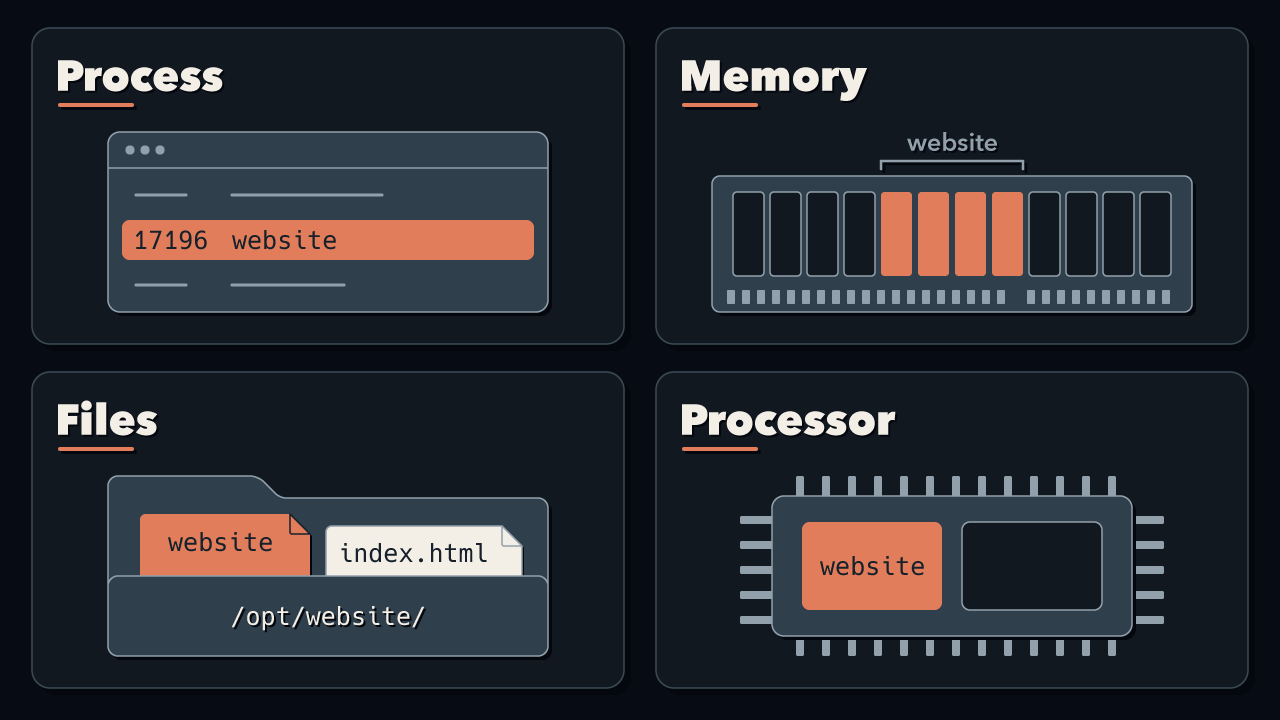
The exercise for my video How Operating Systems Work: Processes, Memory and Files
You need a Mac, a Windows 11 PC or an Ubuntu 26.04 desktop. Nothing to install: the tools come with your computer.
Our website in the video
website, built from the file /opt/
17196
about 1 MB
handles 0 to 4, plus 5 and 6 during a visit
Now find the same for an app on your own computer. Its numbers will be different.
1. Open the process list
Press Cmd+Space, type Activity Monitor and press Return.
Every row is a process. The CPU tab counts them at the bottom, next to Processes.
Press Ctrl+Shift+Esc to open Task Manager, then click Details on the left. If it shows only icons there, click ☰ at the top left first.
Every row is a process.
Press Super (the Windows key), type Resources and press Enter. Then click Processes on the left.
Every row is a process.
Our server ran about thirty processes. Your computer runs many more: my Mac had 829.
2. Find your text editor
Open TextEdit. If it asks you to open a file, click New Document. In Activity Monitor, click Memory at the top and type TextEdit in the search field.
PID is its process ID, and Memory is the memory it uses.
Open Notepad. In Details, find Notepad.exe.
PID is its process ID, and Memory is the memory it uses.
Open Text Editor. In Resources, click the search button at the top and type text.
In the gnome-text-editor row, Process ID is its ID, and Memory is the memory it uses.
3. See its open files
Double-click the TextEdit row, then click Open Files and Ports.
It lists the files and connections TextEdit has open, and the files connected to its memory, like its program file.
Press Win+R, type resmon and press Enter. In Resource Monitor, click the CPU tab, tick Notepad.exe under Processes, then open Associated Handles below it.
Every row is a handle: Windows uses the word too. The rows of type File are files Notepad has open.
Press Ctrl+Alt+T to open a terminal, and type this with your ID in place of 12345:
The number just before each arrow -> is a handle, and after the arrow is what it points to, such as the file /dev/null or a socket, a connection to another program. If you get No such file or directory, check the ID in Resources.
What you found
Your text editor is a process, just like our website: the operating system gave it an ID, memory of its own, and handles for the files and connections it has open. Quit the editor and open it again, and it gets a new ID. It’s a new process, like our website after its restart.
Resources 1.10.2, Text Editor 50.1 and the ls command checked on 2 Nov 2026 on Ubuntu 26.04.1.
Free. Unsubscribe anytime. Form not loading? Subscribe here.